Usage
This is a command-line utility to browse, search, and filter databases. When you’re ready to boss it around, grab the full lexicon in the commands section — it’s the tool’s secret diary, except it wants you to read it.
How the text UI flows
The tool is a text-based interface, so everything happens through the prompt you see in your terminal. The flow is simple:
The tool shows a prompt, optionally with context (project/database/activity).
It may list options, numbered from zero upward.
You send a response by typing either:
A command (e.g.,
lpj,backup,s -loc {CH} energy), orA number to pick one of the displayed options.
Press
Enter, wait for the new output, and repeat.
Seeing it live!
In the following asciinema recording, you can see how to invoke the tool, select a project, select a database, search for an activity, select an activity and print the metadata of the activity.
Because it’s entirely keyboard-driven, there’s no mouse interaction to worry about. It’s more or less like a conversation: you give short instructions, it replies with lists, details, or questions. When a numbered list is on screen, responding with the corresponding number confirms the selection instantly. When you want to do something different, type the command and press Enter. Easy rhythm, minimal ceremony. ✨
When working with modern Brightway node types, aa lists everything in the selected database (including processes). Use lprods to list only product-like nodes (product and process_with_reference_product) before selecting a node for LCIA-oriented commands.
If you still run G while a plain process is selected, the browser now fails gracefully: it warns that LCIA requires a product node, then prints a numbered list of products from that process production exchanges. Select one by number and run G again.
Tool invocation
The package provides an executable script: bw2-browser (regardless of the installed package, bw25ui or bw2ui.
The basic way to invoke the tool is:
bw2-browser
This will start it, and immediately list the available projects.
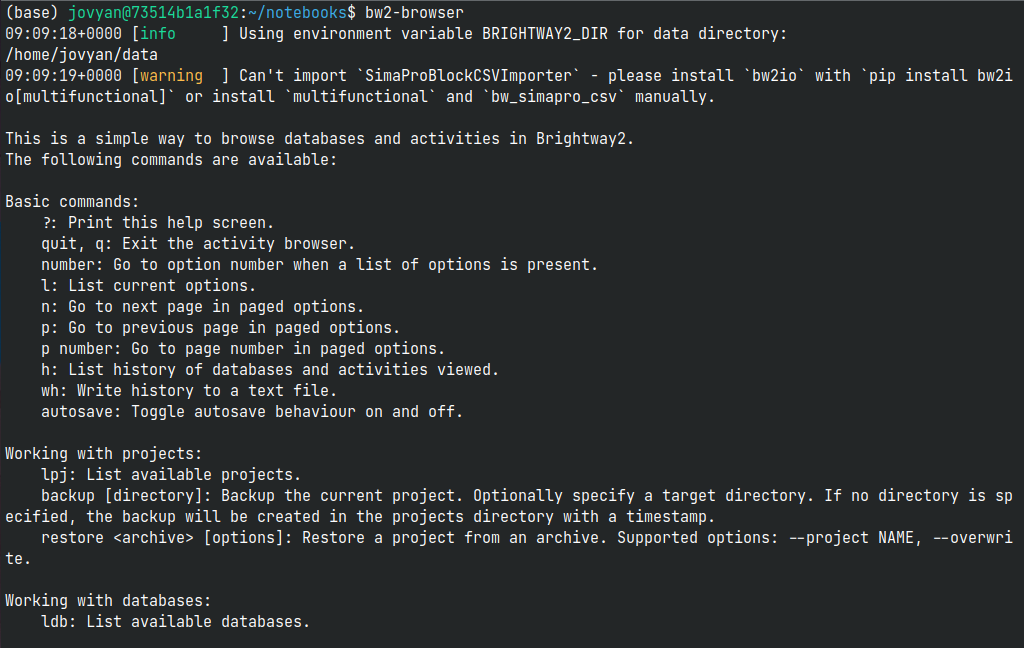
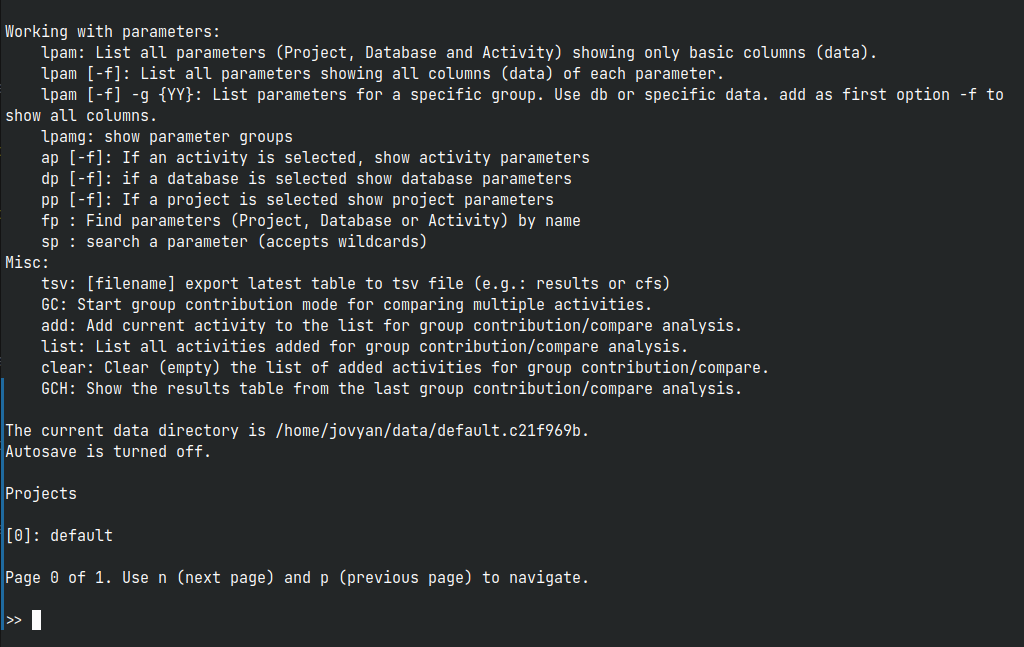
If you already know the project you want to start with, you can provide it as argument to the tool:
bw2-browser <project>
The same applies if you already know a database name or an activity id:
bw2-browser <project> <database>
bw2-browser <project> <database> <activity-id>
Arguments
projectDefines a project to start with
databaseDefines a database to start with
activity-idDefines an activity to start with
Options
-h--help
Show help screen.--version
Show the current version of the tool.